
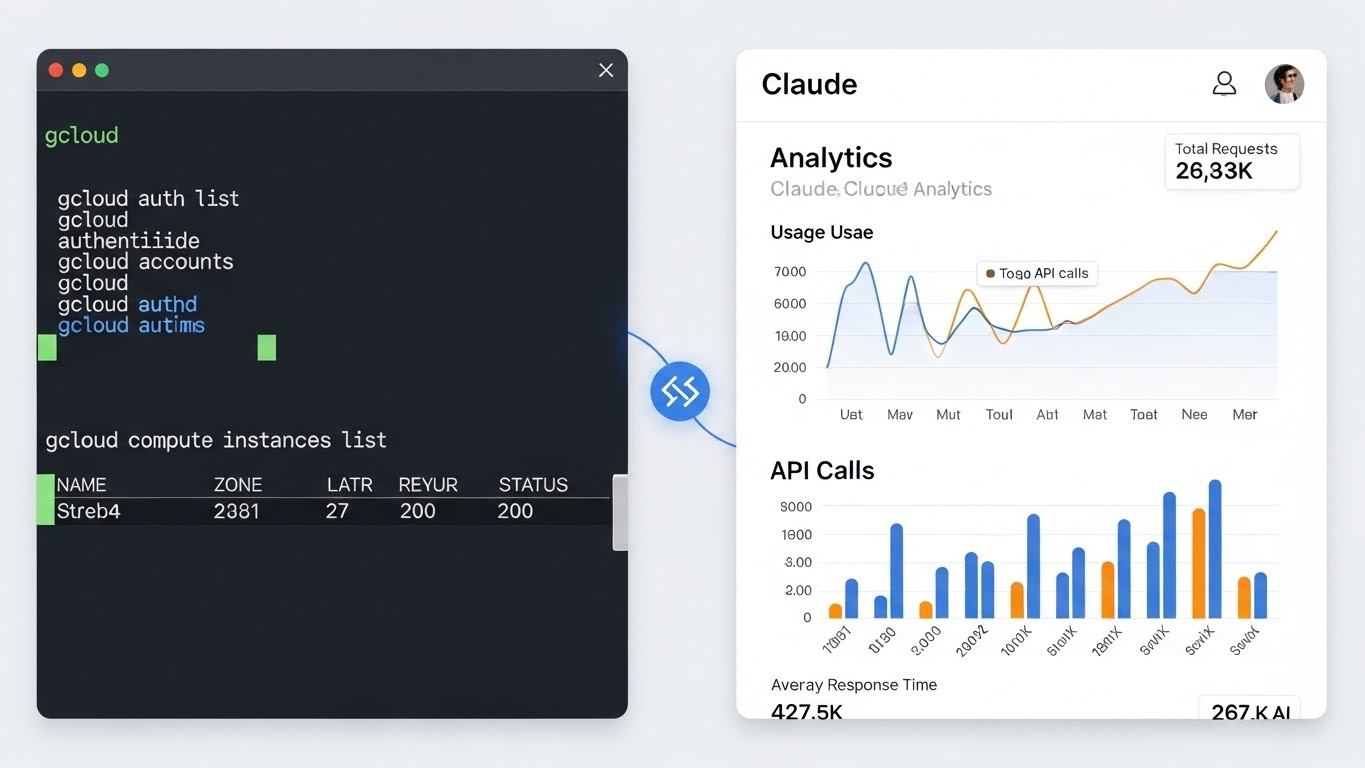
If you're trying to connect Claude or Claude Code to your Google Analytics data, you've probably run into authentication headaches. The typical approach of adding service account emails to every GA4 property works, but it's tedious and fragile.
There's a simpler way: use OAuth authentication through gcloud. Your own Google account grants access, and both desktop Claude and the Claude Code terminal pick up the credentials automatically.
Why This Matters
Service account approaches require you to:
- Generate JSON credential files
- Add the service account email to each GA4 property individually
- Manage and rotate credentials manually
OAuth authentication just works with your existing Google account permissions. If you can access a GA4 property, Claude can access it.
What You Need
- gcloud CLI installed (
brew install google-cloud-clion Mac) - The analytics-mcp installed (
pipx install analytics-mcp) - Claude desktop app or Claude Code CLI (or both)
- Access to at least one GA4 property you want to test with
Step 1: Authenticate with gcloud
This is the critical bit. Most people run gcloud auth application-default login without scopes, which creates credentials that don't have permission to access Analytics APIs.
Run this instead:
gcloud auth application-default login --scopes="https://www.googleapis.com/auth/cloud-platform,https://www.googleapis.com/auth/analytics.readonly"
Your browser will pop up asking you to sign in with your Google account. Click through and authorize.
After it completes, also set a quota project (replace the project ID with yours):
gcloud auth application-default set-quota-project YOUR-PROJECT-ID
This creates credentials in ~/.config/gcloud/application_default_credentials.json. This file is what both Claude and Claude Code will use.
Step 2: Configure Desktop Claude
Open your Claude desktop config file:
nano ~/Library/Application\ Support/Claude/claude_desktop_config.json
Find the analytics-mcp section and update it:
"analytics-mcp": {
  "command": "pipx",
  "args": ["run", "analytics-mcp"],
  "env": {
    "GOOGLE_APPLICATION_CREDENTIALS": "/Users/YOUR-USERNAME/.config/gcloud/application_default_credentials.json"
  }
}
Replace YOUR-USERNAME with your actual username. Remove any old GOOGLE_PROJECT_ID lines you might have.
Save the file and restart Claude desktop. It will now use your OAuth credentials for analytics requests.
Step 3: Configure Claude Code CLI
Claude Code CLI looks for the analytics-mcp in a different way. It needs an environment variable pointing to where the command lives.
First, find where pipx installed it:
which analytics-mcp
This will return something like /Users/your-username/.local/bin/analytics-mcp.
Now add this to your shell profile. If you're on Mac with zsh (the default):
nano ~/.zshrc
Add this line:
export GA4_MCP_SERVER_PATH="/Users/your-username/.local/bin/analytics-mcp"
Save and reload:
source ~/.zshrc
Now when you run Claude Code in terminal and use /mcp, it should find and connect to the analytics-mcp without errors.
Testing It Works
In desktop Claude, try asking it to pull analytics data from one of your GA4 properties. Give it a property ID and ask for a 30-day traffic report.
In Claude Code terminal, run /mcp and you should see the analytics-mcp listed with a green checkmark instead of a failed status.
Common Issues
"insufficient authentication scopes": You didn't use the full scopes command in step 1. Run it again with the full scope list.
"quota project not set": Run gcloud auth application-default set-quota-project YOUR-PROJECT-ID with your actual project ID.
"Analytics MCP failed to connect": The GA4_MCP_SERVER_PATH env var isn't set or points to the wrong location. Verify the path with which analytics-mcp and update your shell profile.
Still getting permission errors: Make sure your Google account actually has access to the GA4 property you're trying to query. You need at least Viewer access.
What's Next
Once this is working, you can build Claude Code agents that pull analytics data on demand, generate reports, compare time periods, or even feed data into automation workflows. The MCP handles authentication transparently from that point on.
One less thing to manage manually.